Check three product details in the App Store
Before getting the iPhone / iPad version, check the developer name, Shadow Launch Technology Limited; compare the official icon; and confirm that the product page shows App ID 932747118. The app name and search ranking are not substitutes for these checks. The official icon used on this site has a white background and a blue-purple outlined design; compare it directly with the product page. If the store shows a different developer or App ID, return to the download page and open the specified product page again.
There are two pricing tiers: the iPhone / iPad version costs $2.99 once on the US App Store storefront, with local currency shown on other storefronts; Mac, Windows, Android, and Linux versions are free. Do not confuse the free versions on other platforms with the App Store purchase for iPhone / iPad. Before paying, check the account, app name, and product page. System requirements are as listed on the App Store page.
Store availability and account region
If the app does not appear in App Store search in mainland China, first check your Apple ID country or region and the storefront currently open. A product page accessible on the web does not mean the storefront for your account allows you to get the app. If you need to change your account region, review the official process in system account settings. Resolve requirements such as account balance, active subscriptions, and payment methods before deciding whether to change it.
Do not rely on repeated searches for similar names instead of verifying the product, and do not assume that a missing search result means a purchase record has disappeared. Confirm the account used for Media & Purchases, then check your purchases. If the system reports a region restriction or an unmet account requirement, resolve that account prompt first. These issues are unrelated to servers, DNS, and routing rules; changing proxy settings will not restore eligibility to purchase from the store.
Restore an existing purchase after changing devices
If you have already purchased the iPhone / iPad version, use the original purchasing Apple ID to find Shadowrocket in the App Store's purchased items. An existing purchase can be used on iPhone and iPad with the same Apple ID; downloading it again usually does not require another purchase. If the price button still appears, confirm that you are signed in to the original purchasing account and check whether the app appears in your purchase history before proceeding.
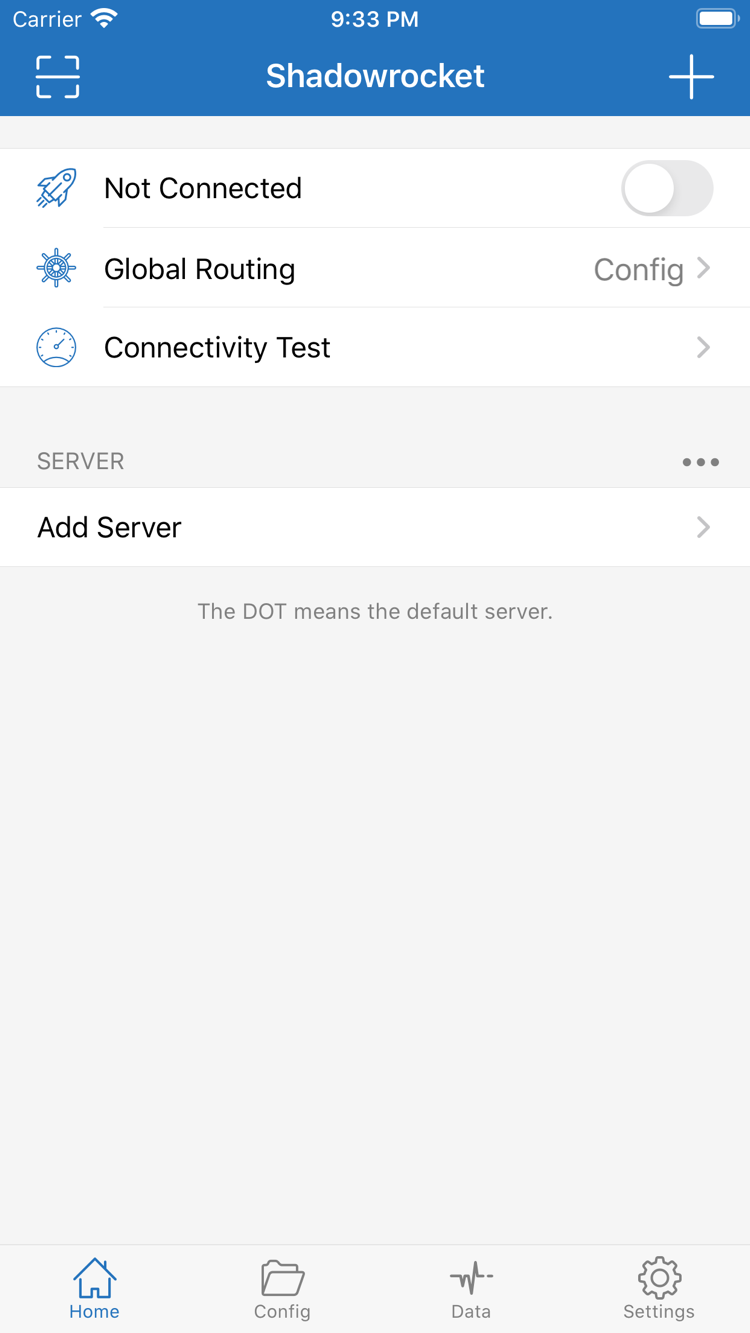
Restoring the app does not restore all configurations. Save any server details and configuration files you need before reinstalling. After reinstalling, check the default server, Global Routing, and system connection permissions. If using iCloud sync, check the result on both devices and confirm the configuration names and contents match before connecting. Configurations may contain credentials; do not send complete backups to others without care.
Free versions on other platforms: check downloads and updates separately
Mac, Windows, Android, and Linux versions are free. Get installers from this site's download page; they are provided through the site's /dl/shadowrocket/ path. Mac users should choose the Apple Silicon or Intel version; Linux users should choose a package format for their distribution. Installation prompts are checks performed by the operating system, not connection tests within the app. Verify the source first, then follow the instructions on the download page.
Update the iPhone / iPad app through the App Store. Computer and Android users can return to this site's download page for an updated installer. Save the current working configuration before updating. Afterward, test the existing server and routing mode before adding settings. If an issue appears after updating, note the symptoms and reproduction steps, and check permissions, configuration selection, and the system network environment before changing all the rules.
A client purchase is not a connection plan
A one-time client purchase is not a connection plan. The iPhone / iPad payment covers the app purchase; Mac, Windows, Android, and Linux clients are free. Neither way of getting the app includes server connection details. You need to already have your own subscription or server information to use it. This site does not provide, sell, or recommend nodes or subscriptions; it explains how to import, manage, route, and troubleshoot details you already have.
Subscription URLs, server addresses, authentication parameters, and expiration dates depend on the information you already have. A successful import means the client can read the content; it does not mean every route is accessible or that a service's validity period has been extended. If authentication fails or a subscription has expired, check the original details. For requests that fail only in part, use server tests, DNS, and rules to locate the issue layer by layer. An app purchase record does not prove that a connection service is available.
Frequently asked questions: separate purchase, installation, and connection issues
Can I use it on a computer or Android device? Yes. Mac, Windows, Android, and Linux versions are free; iPhone / iPad costs $2.99 once through the App Store. Download links for each platform are on the download page. The two Mac chip versions are not interchangeable. See platform and installation FAQs →
The switch is on, but webpages will not open. What should I check? Check the underlying network and current server first, then Global Routing, DNS, and rules. Do not rely only on the connection switch as an indicator. If the issue occurs on one network, keep the settings and compare with another network. Follow the troubleshooting steps by symptom.
Why is the result different after a successful subscription update? An update may change entries or the default selection, and a separate configuration file may still be active. Return to Home to confirm the current server, then check the active configuration in Config. For steps to import existing connection details and test them for the first time, see the user guide.