Cross-platform rule-based proxy client · Official guide

Shadowrocket User Guide
Setup, configuration, and connections

Cross-platform client for rule-based routing with existing configurations. iPhone / iPad: $2.99 one-time through the App Store; Mac, Windows, Android, and Linux versions are free.

Current version Loading · Mac, Windows, Android, and Linux versions are free

Shadowsocks VMess / VLESS Global Routing
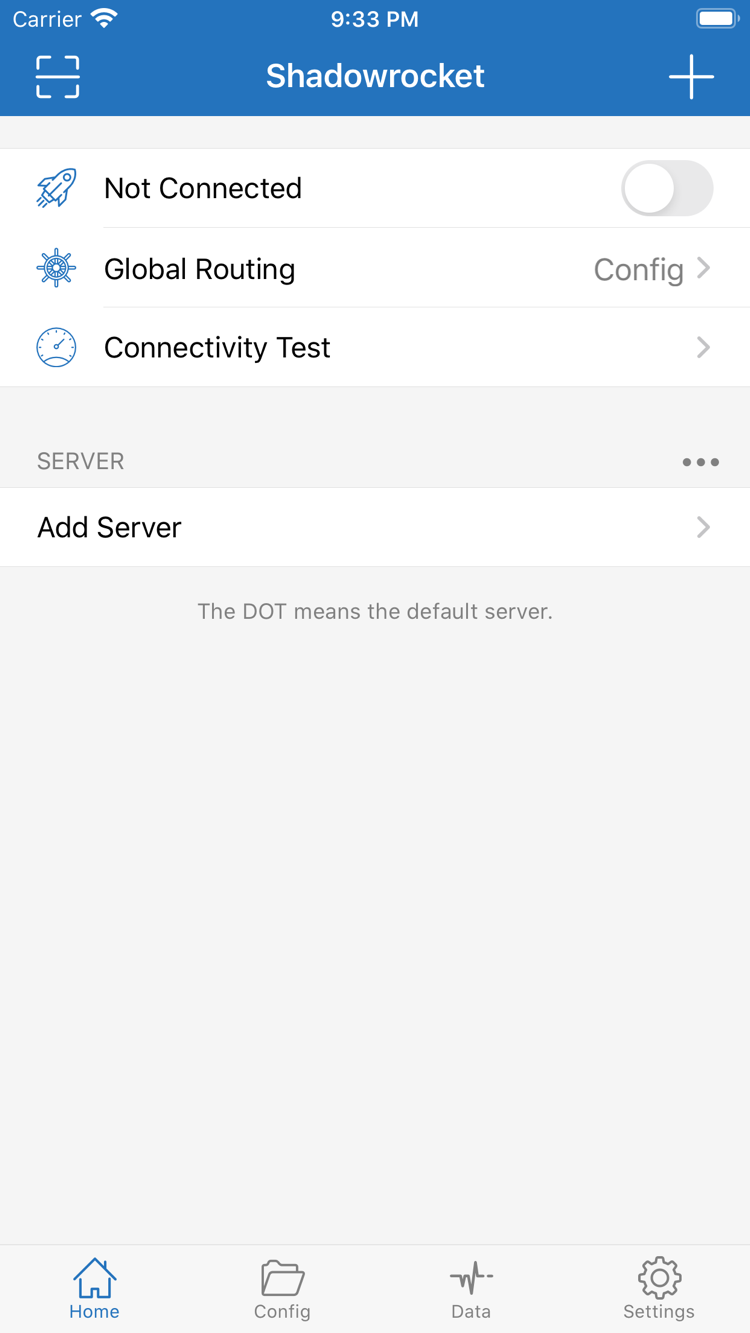
Shadowrocket home screen
Features and settings

Shadowrocket Rules and configuration

Import existing server details first, then choose a routing mode. Configuration snippets explain syntax; they are not server configurations ready to connect.

Match rules in order and apply their policies

Rule-based routing sends different requests along different paths. In Home, select Config under Global Routing. Requests are matched against the configuration rules in order, and the policy for the first match is applied. DOMAIN-SUFFIX identifies domains by suffix, while GEOIP matches the destination IP's location; FINAL handles remaining requests and belongs at the end. Save the original configuration before editing, then retest the same destination to avoid mistaking a server issue for a rule problem.

  • Place specific rules first and fallback rules last.
  • DIRECT means a direct connection; PROXY applies the proxy policy.
  • When Global Routing is set to Proxy, Config rules are not used for routing.
[Rule]
DOMAIN-SUFFIX,example.com,PROXY
GEOIP,CN,DIRECT
FINAL,PROXY

Global Routing: choosing Config, Proxy, or Direct

For everyday rule-based routing, select Config. The active configuration determines which requests connect directly and which use a proxy. Proxy sends relevant requests through the proxy path and can help briefly test whether an issue is related to routing rules. Direct uses a direct connection and can serve as a comparison for the underlying network. These options change routing behavior; they do not fix an incorrect password, an unavailable server, or incomplete protocol parameters. Restore the intended mode after testing so diagnostic settings are not left in place.

For a first connection, keep the steps simple: import your own subscription or server details, confirm the default server in Home, check Global Routing, turn on the connection, then run Connectivity Test and visit the destination you need. When the system first requests network permission, confirm that the request comes from Shadowrocket, then follow the system prompt. If no server is selected after importing, the switch status may not match the actual result. See the first connection guide for the full sequence.

When a connection fails, avoid changing every option at once

Timeouts, authentication failures, and inaccessible domains point to different layers. First check whether the underlying network works with the connection off, then confirm that the current server details are valid. If the server connects but some domains fail, check DNS and routing rules next. If the issue occurs on only one network, keep the original configuration and compare with another network; this is easier to diagnose than importing everything again. Restoring the last working configuration is also a useful troubleshooting step. Not every failure is caused by protocol selection.

When using Data to observe traffic, remember that background apps may also generate requests. To check whether a particular destination used the expected route, consider both actual access and diagnostic records. If connections keep restarting automatically, check On Demand rather than repeatedly tapping the Home switch. Use the troubleshooting manual to distinguish between “cannot connect” and “connected but cannot access,” and avoid unsupported setting changes.

2 ways to get the app

Shadowrocket for all platforms

iPhone / iPad: $2.99 once through the App Store. Mac, Windows, Android, and Linux versions are free. Choose your device, then check its installation requirements.

iPhone / iPad

$2.99 one-time purchase through the App Store. Mac, Windows, Android, and Linux versions are free. Check the App Store page for iPhone / iPad system requirements. If you already purchased the app with the same Apple ID, check your purchases first; changing devices does not necessarily mean you need to buy again.

After importing on a phone, check the configuration, default server, and connection permissions again when switching to a tablet. Purchase history and local settings are separate. In landscape mode, the interface layout may differ; look for interface labels such as Home, Config, and Settings.

Mac

Free · Apple Silicon / Intel. Check About This Mac for the chip or processor, then choose the matching installer instead of guessing from the computer's appearance or purchase year. Both versions are available from this site's download page and are served through its download path.

If you see “Apple cannot verify the developer” on first launch, check the source, then choose “Open Anyway” in “System Settings → Privacy & Security.” If you see “app is damaged,” the download page lists the corresponding steps. Save your existing configuration before updating, then check the connection again.

Windows

Free. The download page provides a 64-bit Windows installer. Save the configuration in use, then follow the installation wizard. For the first check after installation, confirm the server details, routing mode, and actual access results rather than checking only whether the program starts.

If SmartScreen blocks the installer, confirm that the file came from this site and review the prompt. Select “More info,” then “Run anyway.” If the device is managed by an organization, follow its administrator policy instead of repeatedly changing system security settings.

Android

Free. This site provides an arm64 installer. Before downloading, check the device architecture and system installation prompts. If downloads are restricted in an in-app browser, open this site's download page in the system browser and select the Android installer again.

If the system requests permission, enable “Install unknown apps” only for the browser or file manager used to open the installer. You can revoke the permission afterward if needed. Importing an existing subscription and selecting a server are separate steps; the installer does not provide connection details.

Linux

Free · deb / rpm / AppImage. Choose a format that matches your distribution's package management; there is no need to install all three. The download page lists installation commands separately from permission steps. Confirm the actual downloaded file path before running commands.

AppImage requires executable permission; install deb and rpm packages using the package management process for your distribution. If you see a dependency prompt, read the package manager output first. A dependency installation failure is not a proxy configuration failure. After the program opens, import the connection details you already have.

Verify the app, purchases, and usage boundaries

Shadowrocket is a closed-source commercial app. Check the product identity, how to get it, and existing purchase records before troubleshooting configuration or connections.

DeveloperShadow Launch Technology Limited

App ID932747118

Get the appApp Store / site download page

Check three product details in the App Store

Before getting the iPhone / iPad version, check the developer name, Shadow Launch Technology Limited; compare the official icon; and confirm that the product page shows App ID 932747118. The app name and search ranking are not substitutes for these checks. The official icon used on this site has a white background and a blue-purple outlined design; compare it directly with the product page. If the store shows a different developer or App ID, return to the download page and open the specified product page again.

There are two pricing tiers: the iPhone / iPad version costs $2.99 once on the US App Store storefront, with local currency shown on other storefronts; Mac, Windows, Android, and Linux versions are free. Do not confuse the free versions on other platforms with the App Store purchase for iPhone / iPad. Before paying, check the account, app name, and product page. System requirements are as listed on the App Store page.

Store availability and account region

If the app does not appear in App Store search in mainland China, first check your Apple ID country or region and the storefront currently open. A product page accessible on the web does not mean the storefront for your account allows you to get the app. If you need to change your account region, review the official process in system account settings. Resolve requirements such as account balance, active subscriptions, and payment methods before deciding whether to change it.

Do not rely on repeated searches for similar names instead of verifying the product, and do not assume that a missing search result means a purchase record has disappeared. Confirm the account used for Media & Purchases, then check your purchases. If the system reports a region restriction or an unmet account requirement, resolve that account prompt first. These issues are unrelated to servers, DNS, and routing rules; changing proxy settings will not restore eligibility to purchase from the store.

Restore an existing purchase after changing devices

If you have already purchased the iPhone / iPad version, use the original purchasing Apple ID to find Shadowrocket in the App Store's purchased items. An existing purchase can be used on iPhone and iPad with the same Apple ID; downloading it again usually does not require another purchase. If the price button still appears, confirm that you are signed in to the original purchasing account and check whether the app appears in your purchase history before proceeding.

Restoring the app does not restore all configurations. Save any server details and configuration files you need before reinstalling. After reinstalling, check the default server, Global Routing, and system connection permissions. If using iCloud sync, check the result on both devices and confirm the configuration names and contents match before connecting. Configurations may contain credentials; do not send complete backups to others without care.

Free versions on other platforms: check downloads and updates separately

Mac, Windows, Android, and Linux versions are free. Get installers from this site's download page; they are provided through the site's /dl/shadowrocket/ path. Mac users should choose the Apple Silicon or Intel version; Linux users should choose a package format for their distribution. Installation prompts are checks performed by the operating system, not connection tests within the app. Verify the source first, then follow the instructions on the download page.

Update the iPhone / iPad app through the App Store. Computer and Android users can return to this site's download page for an updated installer. Save the current working configuration before updating. Afterward, test the existing server and routing mode before adding settings. If an issue appears after updating, note the symptoms and reproduction steps, and check permissions, configuration selection, and the system network environment before changing all the rules.

A client purchase is not a connection plan

A one-time client purchase is not a connection plan. The iPhone / iPad payment covers the app purchase; Mac, Windows, Android, and Linux clients are free. Neither way of getting the app includes server connection details. You need to already have your own subscription or server information to use it. This site does not provide, sell, or recommend nodes or subscriptions; it explains how to import, manage, route, and troubleshoot details you already have.

Subscription URLs, server addresses, authentication parameters, and expiration dates depend on the information you already have. A successful import means the client can read the content; it does not mean every route is accessible or that a service's validity period has been extended. If authentication fails or a subscription has expired, check the original details. For requests that fail only in part, use server tests, DNS, and rules to locate the issue layer by layer. An app purchase record does not prove that a connection service is available.

Frequently asked questions: separate purchase, installation, and connection issues

Can I use it on a computer or Android device? Yes. Mac, Windows, Android, and Linux versions are free; iPhone / iPad costs $2.99 once through the App Store. Download links for each platform are on the download page. The two Mac chip versions are not interchangeable. See platform and installation FAQs →

The switch is on, but webpages will not open. What should I check? Check the underlying network and current server first, then Global Routing, DNS, and rules. Do not rely only on the connection switch as an indicator. If the issue occurs on one network, keep the settings and compare with another network. Follow the troubleshooting steps by symptom.

Why is the result different after a successful subscription update? An update may change entries or the default selection, and a separate configuration file may still be active. Return to Home to confirm the current server, then check the active configuration in Config. For steps to import existing connection details and test them for the first time, see the user guide.
Official guide · Featured articles

Shadowrocket Guides by topic

Find instructions for tasks ranging from the first connection to protocol fields. Interface labels in the articles remain in English so you can match them on your device.

Free download Shadowrocket